Tuesday, 22 September 2015

Importing your EndNote Items into the Repository

Due to the heavily customized nature of the University repository, the import from EndNote function relies on a purpose built import function, which has a few idiosyncrasies and limitations, which this blog post will discuss.

Limitation 1: Text Only

The software cannot import the binary file saved by the latest version of EndNote distributed by the university. This is typically saved with an .enl file extension (the compressed version ends .enlx).

In order to prepare your Endnote library for import into the repository, you need to export it in text Refer format as laid out below:

In the screenshots I’ve used the sample library provided with EndNote X7, the latest version available from the University

First, Select the items in the EndNote library you would like to include in the file to be imported or you can just choose to generate a file with everything in your endnote library included

Next, from the File menu, select Export


In the export options, choose to export in text format and for style, select another option


Choose the Refer Export format


Check that you have the ‘export selected references’ option ticked if you only want to save your selected items for import into the repository, otherwise untick this and your file will be created with all items in it.

Then go ahead and save your file.

Now in the repository you can import the file you have just created.


Limitation 2: StaffID are not added when you import from an external source

When you have imported a file, the StaffID that allow the association of a repository article with PoA and Web Profiles will not be present. Each article will require the contributor record checking and any University of Liverpool authors should have their StaffID added using the autocomplete function.
See the linked Blog Post on this


Idiosyncrasy: Warnings when running the importer

When the importer is  running, you may see warnings being emitted, such as in the screenshot below:


However, as long as the green status reports the correct number of items you were expecting you can safely ignore these warnings – we are working hard with our supplier to suppress these, but you can be assured they have no effect on the creation of item records within the repository

Tuesday, 1 September 2015

A new look to the repository

After a period of testing on the sandbox, the new look and feel front page of the repository has been made live, featuring a more streamlined look, relocated user menu options and always available search.

Thanks to everyone who provided any input.

As always, comments and feedback welcome on this post or to the author.

Wednesday, 26 August 2015

Uploading your papers - which version can be used?

One of the features of the Repository is that you can make a copy of your journal papers openly available on the web (usually after an embargo period determined by your publisher - see our Open Access guide for more details). Indeed, this will be a requirement for journal papers to be eligible for the next Research Excellence Framework.

However, in many cases you will not be allowed to upload the file of your journal article created by the publisher - the copyright in that version rests with the publisher, and we will not be allowed to make it publicly available. In cases such as these, a PDF or Word file of your own Author Accepted Manuscript, also known as a post-print, should be uploaded. This is your own file, incorporating changes made after peer review, but not including any publisher formatting.

How can I quickly tell which version I can upload to the Repository?
You can keep this simple by following this guidance:

  • If a fee has been paid to make the article openly accessible on the publisher's website, you can upload the publisher version.
  • If a fee has not been paid to make the article openly accessible on the publisher's website, you should only upload your own Author Accepted Manuscript.

Although there will be occasional exceptions to the second point above, this is the easiest way to determine which version of your paper can be uploaded.

Remember you can always get further information, and contact the Scholarly Communications Librarian, via the Open Access Guide.

Thursday, 13 August 2015

Updating the repository's look and feel - we want your feedback

As part of our continual efforts to improve user interaction, we have redesigned the front page and menus of the University of Liverpool Repository. The redesign is now available for testing and comment on the training server, which can be found at:

http://tept.liv.ac.uk

Please note that as this is a test server, it cannot be accessed outside of the university network. Off campus access can be gained by using Apps Anywhere

The main changes that have been made are:


  • The login and user functions have been incorporated into the left hand menu. This should give a more unified experience, with all links to actions now incorporated into the same place on screen.
  • Search has also been moved to the left hand side, making it always available.
  • A few small UI and functionality tweaks at the back end in response to various issues raised
We always welcome feedback - we are especially interested in hearing any views about this new front end before we make it live in the coming days. Please add them as a comment to this post, or send them via email to the author.

Tuesday, 11 August 2015

The University Repository Request Copy Spam

Recently the University Repository was the victim of a spammer using its inbuilt functions to send spam to a number of members of staff the following is a short report on the incident

How did it happen?
The attackers performed a search for all repository items with a full text document. They then individually requested each file. The files that are
restricted (embargoed) bring up a page, which allows the corresponding author to be sent a message. They wrote a script that injected the spam into this page and sent it.

Who?
The requests were from domains such as dynamic.isp.telekom.rs  - basically a free IP service in Serbia that effectively masks the computer which could be in any part of the world 

What?
What have we put in place in response to this? In short, we have removed the function - you now need to log in to see restricted files . . .


As far as we can tell from analysing the usage of the repository, the function had vanishingly small legitimate use, so we are not planning on re-enabling it. Please let us know in the comments below if this function is something that you would find useful and we can examine ways of sanitising (ensuring in future no spam is allowed through the text field) the form.

Tuesday, 21 July 2015

My Publications - why we've removed these potentially confusing links

When the repository was launched, initial testing identified the need for an easy way to find items from the TULIP publication database, or those that might be created by a colleague. Thus the ‘My Publications’ searches were created. Unfortunately, there has been some confusion about their purpose, so, as part of the recent upgrade, these options have been removed.


These links were essentially links to “canned searches” – they searched the repository to find records that include either your staff ID number or your name, with the results being the same as if you’d used the advanced search function available from the repository home page.

Often the search results for these two options differ slightly. This could be because staff ID numbers haven’t been included in some of the records, or your name might have been entered differently. In any case, the My Publications links were intended to be two quick ways for authors to find records that they are connected with, rather than a way of managing records.

The best way to keep track of your records in the repository is to look at your Manage Deposits page. All records with the status “Live Archive” are in the repository and will be available for you to select for your PDR and staff profile.

If you find that you’re really missing the My Publications links, please let us know as they can be brought back quite easily. By removing these potentially confusing links, we’re hoping that repository users will find the Manage Deposits screen much less daunting.

As ever, if you’re having any problems with the repository, please contact our IR team irhelp@liv.ac.uk. If you’d like to organise training for you or your colleagues, please contact Stephen Carlton stephen.carlton@liverpool.ac.uk

Friday, 3 July 2015

"That citation doesn't look right" - citation displays in the Repository

It’s sometimes remarked that the “citations” in the repository don’t look right – that they aren’t of a recognised format, or don’t correspond to a particular discipline’s style guidelines. The reason for this, and why we have surrounded the word “citations” with scare quotes is outlined below.

The main purpose of the Repository is to provide a way for published outputs to be made generally available, allowing the dissemination of research from institutional authors. So, the Repository in itself isn’t a citation database. Part of the impact of this is, for example, full names rather than initials being used for staff authors, which is a side effect of the processes necessary to link the Repository to PoA and other institutional processes. All of the information necessary to create a citation can be exported from the Repository, with users able to use that output to create their own citations with whatever tools they wish.

To display the information held about any individual item, the Repository generates a pseudo-citation display, using one overall style. Given the many different disciplines at Liverpool it is impossible to settle on one specific citation style to use as a model that would be acceptable to all, so a generic style has been selected.

We hope that this addresses concerns about the appearance of publication details in the Repository, and welcome feedback on this issue either as comments on these blog posts or via email to irhelp@liv.ac.uk.

Friday, 10 April 2015

New versions and editing old versions - what's the difference?

Sometimes you may wish to make edits to an existing record within the Repository. In such cases it would seem easier to edit the existing record than create a new version, but this is not actually the case.

To explain, records in the Repository can "live" in three main areas, which you can see when you click "Manage Deposits" after logging in:


  1. Your user work area, where you initially create the record before depositing it, at which point it moves into -
  2. The under review buffer, where it stays in a "locked" form, waiting to be checked by an editor (who checks things like are details fully completed, do uploaded documents comply with copyright restrictions); if changes are required the editors will move it back into your work area, and if everything is fine the editors move it into -
  3. The live archive, at which point the record becomes available to TULIP, to search engines, and the public view of the Repository. At this point the record is considered the final record, and can't be changed.
But what if you need to change it? For example, something in press has now been published, or you realise the publisher has changed the title of your document.

At this point, it is more straightforward for you to go into the Repository, view the item in question by clicking the view icon (see below), then Actions > New Item, as shown in the screenshots below.


Why is this quicker? Because you then immediately have a new version of that record in your user work area which you can then edit. To edit an existing live record (which is considered the final record), you would need to send an email to the Repository team asking for the existing record to be moved back into your work area, which would slow down the process of editing the record.

The "Stepping Stones" blog entry below outlines why there is no need to worry about having multiple versions of the same item in your manage deposits area, as only the most recently-approved version will be available to TULIP, and only the most recently-approved version will be publicly viewable.

Stepping stones - why not to worry over multiple versions in your work area

A common source of confusion amongst staff making changes to records in the repository is the question "why can't I delete the previous versions of this record?" - the following explains why.

You don't need to worry about having multiple versions of the same thing when you log into your work area in the Repository as this is actually a requirement of the system in order for the Repository to talk to TULIP, and therefore to your Portfolio of Activitiy, staff profile, etc. We can use a metaphor to explain this, namely that the repository and TULIP are on opposite sides of a river, and data has to get from the Repository, over the river and into TULIP.

Each time you create a version of a record you’re creating an extra stepping stone between the riverbanks, and also widening the river – each stepping stone, or in other words each version of the record, is always one full stride apart. If you were to remove one of those stepping stones by deleting one of the versions you would break the path and make it impossible for data to get from the Repository into TULIP, i.e. your record would fall into the metaphorical river.

That is why no-one is able to delete previous versions of a record from their manage deposits area in the Repository. This is italicised as it's important to note there will still only ever be one version of the item publicly available for outside users to view, so you needn’t worry about staff profiles, the public view of the Repository, etc., getting cluttered up with multiple versions of the same thing.

Thursday, 9 April 2015

The importance of contribution

When depositing an item into the Repository, it is vital that all parts of the Contributor section be completed, or the item in question will not be available via TULIP to other University systems like Web Profile Pages, Portfolio of Activity, or your PDR.


Please see the following screenshot:


The ‘Contributors’ section takes its information from HR’s systems. Type in your staff ID and the name parts of the entry will auto-complete from the information in HR’s systems. Please do not then edit the name information – if you do edit the name information the link between your name and staff ID will be broken and the link to TULIP will not work. Please note we may be able to remove this restriction in the near future.

In order for the record to be available to the TULIP system for all Liverpool-based contributors, they will all need their staff IDs present. You can do this simply by entering their name, as the field auto-completes (though be aware it is case sensitive). If you type a surname in, beginning with a capital letter, you will see a drop-down like the one shown in the image above. When you select the name of the Liverpool-based co-contributor, the staff ID will be filled in and the record will be available to their Web Profile Pages, Portfolio of Activity, and so on.

The following process must be undertaken for any items that you import via DOI, PubMed etc. in order to ensure the records are available to TULIP-related systems (profile pages, PDR, etc.). This is because imported records clearly will not contain your staff ID, the piece of information vital to linking your records to TULIP.
1.      After importing the record, go to the “Contributors” section.
2.      Delete the name in the “Given Names / Initials” field and start typing the name, beginning with a capital letter.
3.      The auto-completer drop-down will display – select the appropriate name.
4.      This needs to be done for each Liverpool-based author. 

You also need to set the ‘Contribution’ type on the left side, i.e. Author, Editor. This should be done for all University of Liverpool authors.

The above workflow helps ensure that records you create are available to other systems and won't be returned to you for correction.

Wednesday, 3 December 2014

The Repository, TULIP, and your PDR

For staff currently preparing Portfolios of Activity for PDR purposes, this may be the first time you have had cause to use the University Repository. Issues regarding how the Repository and TULIP interact for these purposes have been covered in other blog posts and documents. This entry brings together links to the most relevant.

The most important element to note at the moment is that ordinarily item details are transferred from the Repository into TULIP each night. However, you can also refresh your TULIP records from the Repository on demand from within the Portfolio itself. Go to the Research/Scholarship tab and then, in the Research Outputs section, click on [Refresh my Research Outputs from the Repository].

Please note:
  1. New items must be deposited in the Repository before they become available in TULIP (the status after you deposit will state "Under Review" - the records will become live after quick checking from library staff).
  2. For changes to an existing item, the new version must be live in the Repository before it becomes visible in TULIP. The exception to this rule is Confidential items, as these never become live in the Repository. In this case the new version only needs to be deposited.
Information on:
How to update the details of a record that was originally created in TULIP - http://livrepo.blogspot.co.uk/2014/10/tulip-and-university-repository-or-why.html (see also the "Life After Launch" document - http://libguides.liv.ac.uk/loader.php?type=d&id=1268527)

How to create a brand new record (i.e. not to modify an existing record) - http://www.liv.ac.uk/library/IR/repository_deposit_guide_2014_10_23.pdf

How to have a record available to your Portfolio of Activity but not appear on your staff profile - http://livrepo.blogspot.co.uk/2014/11/i-dont-want-this-publication-showing-on.html

Friday, 28 November 2014

"I don't want this publication showing on my staff profile ..."

As staff get accustomed to using the new Repository, one issue you may find is that you've created a record in the Repository that you don't want to appear in your staff profile page. This is where it's important to understand how the different system interact.
The Repository as it stands performs two separate-but-linked functions:
  • it provides a structured database for making details of your publications, often including the full text, publicly available at http://repository.liv.ac.uk; and
  • it provides information on publications which is shared with TULIP, from where that information is used in many other systems such as the Portfolio of Activity and, most pertinently here, the Staff Profile pages.
The important concept to understand here is that the Staff Profile pages do not take their information directly from the Repository - they take them from TULIP, and it's simply now the case that entering details via the Repository is what gets those details into TULIP (and provides extra functionality for open access).

There may be cases where you don't want the details of publications you have entered into the Repository to be displaying in your Staff Profile pages. Depending on what you want to do, you have two options:
  • If you want to ensure the item is not publicly available at all, i.e. available through neither the Repository itself, nor your staff profile pages, then when creating the record set its confidential status to "Yes".
The confidential property is the second field in the publication details section. By default it is set to 'no'.
  • If you want to hide the item from your staff profile page but still want it to be publicly available through the Repository itself, leave the confidential status to "no", make a note of the item id number, and then send an email to helpdesk@liverpool.ac.uk with that id number, asking for the item to be hidden from your staff profile.
The easiest way to find an item's ID number is from the URL if you are editing it - it's the number after eprintid, e.g. in the example below, the item with ID 2000000 is being edited.

https://repository.liv.ac.uk/cgi/users/home?eprintid=2000000&screen=EPrint::Edit&stage=core#contributors

If you are just viewing your items, you can find out the item ID by looking at the item in your Author listing on the repository:

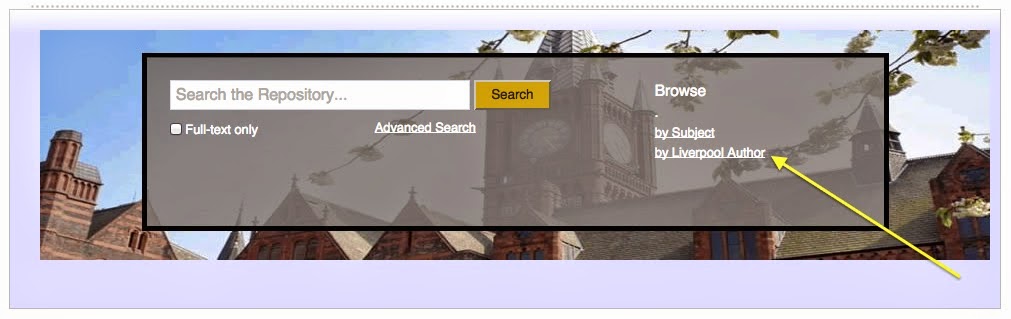
Choose Browse by Liverpool author to find your own author listing
The URL that links from the title of your publication will give you the ITEM ID of your publication.


This is just a temporary measure - upon completion of the separate Staff Profile Pages project, you will be able to use TULIP itself to decide which items do and do not appear on your staff profile.

For clarity, you should also know that any changes you make in the Repository will only be reflected in TULIP and your profile pages the morning after the changes have been made. When the Staff profile Pages project is complete, you will be able to refresh your profile pages on demand.

Wednesday, 12 November 2014

Life after launch - the Repository after its first fortnight

It's a fortnight after the release of the University Repository and we've a good idea now what categories the queries we've received predominantly fall into. We've addressed this issues in a Life after Launch document - http://libguides.liv.ac.uk/loader.php?type=d&id=1268527. This document addresses the common questions we've received in the three areas:
  1. Editing of records (particularly of records imported from TULIP)
  2. Ownership of records
  3. Multiple/Duplicate author names in records
 Though all of these issues have also been addressed elsewhere in this blog, the document brings them altogether in one place.

Tuesday, 28 October 2014

How to tell if a repository record has been imported from TULIP

The previous blog post outlined why it is important not to directly edit or amend (or especially remove) any records in the Repository that have been imported from TULIP (i.e. doing so could cause problems with the other systems, such as Portfolio of Assessment, that take their publications details from TULIP) - but how do you know for sure if a record has been imported from TULIP?

The answer is straightforward - when viewing the record for a specific item, look at the web address. It will be in the form of repository.liv.ac.uk/XXXXXXX, where XXXXXXX is a number. If this number is between 1,000,000 and 2,000,000, this indicates that the record has been imported from TULIP and should not be directly edited.

TULIP and the University Repository; or why you should avoid directly editing imported records


It is useful to understand the link between TULIP and the University Repository, both now and into the future.

Currently, the majority of the records in the University Repository have been imported from TULIP. These records were used in TULIP to populate things like Portfolio of Assessment and staff profile web pages.

These original records are part of the historical record of the University’s output and should not be directly edited or amended. To do so could interfere with processes that audit and monitor those records. Similarly, with newly created records, once that record exists, it is important that the first entry is maintained in its original state.

If you need to make any changes to a record, please create a new version of it as outlined below, then proceed to edit that new version:

1. Create a new version. Whenever you make any changes in the repository, you should always create a new version - this creates a history trail for your item records and allows the proper checking of any changes made both against the usage in other institutional systems (Portfolio of Assessment, Profile pages etc.) and quality checking. First, within manage deposits click the View icon (a piece of paper with a magnifying glass) next to the item you want to change, then click the Actions tab and select New version.


2.  You will see a message to indicate you have successfully created a new version


3. In the actions tab of the item, now select Edit Item for the new version:


4. Change the view to the Details of the Item and make the changes you need as appropriate.

Save your changes - they will then be reviewed and normally the new version will go live the next day (there may be a bit of a delay during the initial repository launch period as many people do this!). When the new version of the record is made live, the old one will no longer appear on the publicly-viewable repository (though it will still remain within the system).

Friday, 24 October 2014

University Repository launched

The University Repository is now available. The University Repository will replace TULIP's function of providing the university's database of research publication details. It will also provide the means to make the full text of research outputs available online.

The following text explains some of the reasons behind this move, and outlines some of the things you can expect, in more detail.


Why are we switching?

The University Repository is specifically designed to store and manage bibliographic data concerning university research outputs, especially publications. You can also store and make available full text versions of your published outputs, a vital requirement to comply with HEFCE and other funders’ open access requirements (see the Open Access LibGuide for more information).

What’s happening to the publications details in TULIP?

These details have been imported into the University Repository. The way publication details have been held previously, coupled with the process of bringing them into the Repository, means that some data will look poor in the Repository; for example, attempts to de-merge long author lists mean author surnames such as de Bolins or van Houten may not display correctly. The most obvious difference will be that often authors will appear twice in a record. This is explained in the following blog post Knowing Me Knowing You. It is important to note this is a result of how data have been previously stored and then imported into the Repository; it is not a “feature” of the Repository, future publications will not exhibit the same inconsistencies, and details can be edited within the Repository. The citations should still display the authors of a publication correctly.

Will details of all my publications be publicly viewable immediately through the Repository?

Yes and no. Those publication details that are currently viewable to other systems via TULIP will be publicly viewable immediately through the Repository. Those details that are in TULIP but currently hidden from other systems will be imported into something called the Review Buffer in the Repository, and will have their confidential status set to yes. In order to make such hidden items available, you will need to log in and return the item to your work area. You will then need to create a new version of the record and make any required edits, including setting the “confidential” status to “no” before placing the item back into the Review Buffer. Library staff can then check the details before the item is made available. In this way we ensure that no matter what the original reason for hiding a publication, they remain hidden until a choice is made by you to change that status. In other words, there is no need to worry that currently hidden records will suddenly become publicly viewable after the switch.

How will this affect things like my staff web page and Portfolio of Assessment?

These systems will continue to take their information from TULIP. The University Repository and TULIP will be linked in such a way that TULIP will mirror publication details entered in the Repository, and so, in practice, you should not notice any difference in your staff web page displays. There are checks in place to ensure that items in the repository cannot be removed (or certain changes made) if they are used in other official systems, such as a Portfolio of Assessment.

What will the University Repository do?

The University Repository will act as the university’s primary location for our published research outputs. Details of journal articles, monographs, conference proceedings and so on will be entered into the Repository either by research staff themselves or administrative staff on their behalf. Once entered, details will be quality checked by library staff before being made publicly available. Library staff will also check that the version of full-text papers uploaded to the repository is the correct one.

How does the Repository relate to open access?

The Repository will be one of our key ways of making publications available on an open access basis. The University’s Open Access policy (due to be considered by Senate in November 2014) requires staff to upload details of journal articles and conference proceedings (i.e. all outputs in publications with an ISSN) and their author accepted manuscript into the Repository within three months of acceptance by a journal. The author accepted manuscript is your own version of the paper incorporating all revisions required by the peer review process, but not including the publisher’s own formatting. This will be required to meet the HEFCE’s policy on open access and the next Research Excellence Framework. For clarity, this form of open access is often referred to as Green open access and author self-archiving.

How do I get publications details into the Repository?

A full guide to uploading publications into the Repository is available. In summary, there are two main ways of entering publication details:
  • manually, that is by typing them in; and
  • by import, that is by importing details from sources such as DOIs, PubMed IDs, or EndNote libraries.

Who should I contact if I have a question not answered here?

Please send your enquiries to irhelp@liv.ac.uk. Your question will then be answered or forwarded to someone else for an answer as appropriate.

Wednesday, 22 October 2014

Knowing Me, knowing you . . .

When you examine the information imported from TULIP into the repository, you will notice an odd thing - there will tend to be University of Liverpool staff in the entry listed twice.

This came about because of the way the information about a publication was stored in TULIP. It was not possible to reliably tell which of the staff who had administered (created, edited, etc.) the record were part of the citation list.

In order to address this issue, the records were imported with both sets of users attached. However, administrative users (i.e.e anyone who created or edited the record) are a special user type which means they do not appear in the automatically generated citation for that item. If you wish to clean up the contributor records of you items the repository, it is necessary to perform the following steps on each record:

Create a new version - whenever you make any changes in the repository, you should always create a new version - this creates a history trail for your item records and allows the proper checking of any changes made both against the usage in other institutional systems (PoA, Profile pages etc) and Quality Checking.


 You will see a message to indicate you have successfully created a new version


In the actions tab of the item, now select Edit Item for the new version:


Change the view to the Details of the Item:


Change the contributor type of UoL authors as appropriate (this will mostly be to 'author') and remove (just delete the information) the authors that are duplicates:


Save your changes - they will then be reviewed and normally the new version will go live the next day (there may be a bit of a delay during the initial repository launch period as many people do this!)