Friday, 10 April 2015

New versions and editing old versions - what's the difference?

Sometimes you may wish to make edits to an existing record within the Repository. In such cases it would seem easier to edit the existing record than create a new version, but this is not actually the case.

To explain, records in the Repository can "live" in three main areas, which you can see when you click "Manage Deposits" after logging in:


  1. Your user work area, where you initially create the record before depositing it, at which point it moves into -
  2. The under review buffer, where it stays in a "locked" form, waiting to be checked by an editor (who checks things like are details fully completed, do uploaded documents comply with copyright restrictions); if changes are required the editors will move it back into your work area, and if everything is fine the editors move it into -
  3. The live archive, at which point the record becomes available to TULIP, to search engines, and the public view of the Repository. At this point the record is considered the final record, and can't be changed.
But what if you need to change it? For example, something in press has now been published, or you realise the publisher has changed the title of your document.

At this point, it is more straightforward for you to go into the Repository, view the item in question by clicking the view icon (see below), then Actions > New Item, as shown in the screenshots below.


Why is this quicker? Because you then immediately have a new version of that record in your user work area which you can then edit. To edit an existing live record (which is considered the final record), you would need to send an email to the Repository team asking for the existing record to be moved back into your work area, which would slow down the process of editing the record.

The "Stepping Stones" blog entry below outlines why there is no need to worry about having multiple versions of the same item in your manage deposits area, as only the most recently-approved version will be available to TULIP, and only the most recently-approved version will be publicly viewable.

Stepping stones - why not to worry over multiple versions in your work area

A common source of confusion amongst staff making changes to records in the repository is the question "why can't I delete the previous versions of this record?" - the following explains why.

You don't need to worry about having multiple versions of the same thing when you log into your work area in the Repository as this is actually a requirement of the system in order for the Repository to talk to TULIP, and therefore to your Portfolio of Activitiy, staff profile, etc. We can use a metaphor to explain this, namely that the repository and TULIP are on opposite sides of a river, and data has to get from the Repository, over the river and into TULIP.

Each time you create a version of a record you’re creating an extra stepping stone between the riverbanks, and also widening the river – each stepping stone, or in other words each version of the record, is always one full stride apart. If you were to remove one of those stepping stones by deleting one of the versions you would break the path and make it impossible for data to get from the Repository into TULIP, i.e. your record would fall into the metaphorical river.

That is why no-one is able to delete previous versions of a record from their manage deposits area in the Repository. This is italicised as it's important to note there will still only ever be one version of the item publicly available for outside users to view, so you needn’t worry about staff profiles, the public view of the Repository, etc., getting cluttered up with multiple versions of the same thing.

Thursday, 9 April 2015

The importance of contribution

When depositing an item into the Repository, it is vital that all parts of the Contributor section be completed, or the item in question will not be available via TULIP to other University systems like Web Profile Pages, Portfolio of Activity, or your PDR.


Please see the following screenshot:


The ‘Contributors’ section takes its information from HR’s systems. Type in your staff ID and the name parts of the entry will auto-complete from the information in HR’s systems. Please do not then edit the name information – if you do edit the name information the link between your name and staff ID will be broken and the link to TULIP will not work. Please note we may be able to remove this restriction in the near future.

In order for the record to be available to the TULIP system for all Liverpool-based contributors, they will all need their staff IDs present. You can do this simply by entering their name, as the field auto-completes (though be aware it is case sensitive). If you type a surname in, beginning with a capital letter, you will see a drop-down like the one shown in the image above. When you select the name of the Liverpool-based co-contributor, the staff ID will be filled in and the record will be available to their Web Profile Pages, Portfolio of Activity, and so on.

The following process must be undertaken for any items that you import via DOI, PubMed etc. in order to ensure the records are available to TULIP-related systems (profile pages, PDR, etc.). This is because imported records clearly will not contain your staff ID, the piece of information vital to linking your records to TULIP.
1.      After importing the record, go to the “Contributors” section.
2.      Delete the name in the “Given Names / Initials” field and start typing the name, beginning with a capital letter.
3.      The auto-completer drop-down will display – select the appropriate name.
4.      This needs to be done for each Liverpool-based author. 

You also need to set the ‘Contribution’ type on the left side, i.e. Author, Editor. This should be done for all University of Liverpool authors.

The above workflow helps ensure that records you create are available to other systems and won't be returned to you for correction.

Wednesday, 3 December 2014

The Repository, TULIP, and your PDR

For staff currently preparing Portfolios of Activity for PDR purposes, this may be the first time you have had cause to use the University Repository. Issues regarding how the Repository and TULIP interact for these purposes have been covered in other blog posts and documents. This entry brings together links to the most relevant.

The most important element to note at the moment is that ordinarily item details are transferred from the Repository into TULIP each night. However, you can also refresh your TULIP records from the Repository on demand from within the Portfolio itself. Go to the Research/Scholarship tab and then, in the Research Outputs section, click on [Refresh my Research Outputs from the Repository].

Please note:
  1. New items must be deposited in the Repository before they become available in TULIP (the status after you deposit will state "Under Review" - the records will become live after quick checking from library staff).
  2. For changes to an existing item, the new version must be live in the Repository before it becomes visible in TULIP. The exception to this rule is Confidential items, as these never become live in the Repository. In this case the new version only needs to be deposited.
Information on:
How to update the details of a record that was originally created in TULIP - http://livrepo.blogspot.co.uk/2014/10/tulip-and-university-repository-or-why.html (see also the "Life After Launch" document - http://libguides.liv.ac.uk/loader.php?type=d&id=1268527)

How to create a brand new record (i.e. not to modify an existing record) - http://www.liv.ac.uk/library/IR/repository_deposit_guide_2014_10_23.pdf

How to have a record available to your Portfolio of Activity but not appear on your staff profile - http://livrepo.blogspot.co.uk/2014/11/i-dont-want-this-publication-showing-on.html

Friday, 28 November 2014

"I don't want this publication showing on my staff profile ..."

As staff get accustomed to using the new Repository, one issue you may find is that you've created a record in the Repository that you don't want to appear in your staff profile page. This is where it's important to understand how the different system interact.
The Repository as it stands performs two separate-but-linked functions:
  • it provides a structured database for making details of your publications, often including the full text, publicly available at http://repository.liv.ac.uk; and
  • it provides information on publications which is shared with TULIP, from where that information is used in many other systems such as the Portfolio of Activity and, most pertinently here, the Staff Profile pages.
The important concept to understand here is that the Staff Profile pages do not take their information directly from the Repository - they take them from TULIP, and it's simply now the case that entering details via the Repository is what gets those details into TULIP (and provides extra functionality for open access).

There may be cases where you don't want the details of publications you have entered into the Repository to be displaying in your Staff Profile pages. Depending on what you want to do, you have two options:
  • If you want to ensure the item is not publicly available at all, i.e. available through neither the Repository itself, nor your staff profile pages, then when creating the record set its confidential status to "Yes".
The confidential property is the second field in the publication details section. By default it is set to 'no'.
  • If you want to hide the item from your staff profile page but still want it to be publicly available through the Repository itself, leave the confidential status to "no", make a note of the item id number, and then send an email to helpdesk@liverpool.ac.uk with that id number, asking for the item to be hidden from your staff profile.
The easiest way to find an item's ID number is from the URL if you are editing it - it's the number after eprintid, e.g. in the example below, the item with ID 2000000 is being edited.

https://repository.liv.ac.uk/cgi/users/home?eprintid=2000000&screen=EPrint::Edit&stage=core#contributors

If you are just viewing your items, you can find out the item ID by looking at the item in your Author listing on the repository:

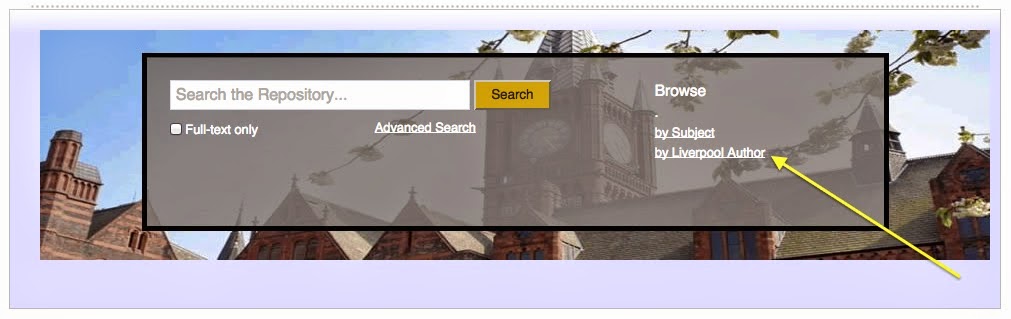
Choose Browse by Liverpool author to find your own author listing
The URL that links from the title of your publication will give you the ITEM ID of your publication.


This is just a temporary measure - upon completion of the separate Staff Profile Pages project, you will be able to use TULIP itself to decide which items do and do not appear on your staff profile.

For clarity, you should also know that any changes you make in the Repository will only be reflected in TULIP and your profile pages the morning after the changes have been made. When the Staff profile Pages project is complete, you will be able to refresh your profile pages on demand.

Wednesday, 12 November 2014

Life after launch - the Repository after its first fortnight

It's a fortnight after the release of the University Repository and we've a good idea now what categories the queries we've received predominantly fall into. We've addressed this issues in a Life after Launch document - http://libguides.liv.ac.uk/loader.php?type=d&id=1268527. This document addresses the common questions we've received in the three areas:
  1. Editing of records (particularly of records imported from TULIP)
  2. Ownership of records
  3. Multiple/Duplicate author names in records
 Though all of these issues have also been addressed elsewhere in this blog, the document brings them altogether in one place.

Tuesday, 28 October 2014

How to tell if a repository record has been imported from TULIP

The previous blog post outlined why it is important not to directly edit or amend (or especially remove) any records in the Repository that have been imported from TULIP (i.e. doing so could cause problems with the other systems, such as Portfolio of Assessment, that take their publications details from TULIP) - but how do you know for sure if a record has been imported from TULIP?

The answer is straightforward - when viewing the record for a specific item, look at the web address. It will be in the form of repository.liv.ac.uk/XXXXXXX, where XXXXXXX is a number. If this number is between 1,000,000 and 2,000,000, this indicates that the record has been imported from TULIP and should not be directly edited.